1Install & first run
SFXPick is a single, self‑contained Windows program. There's no installer and nothing else to copy alongside it.
- Download the zip from the Download button and unzip it anywhere (your Desktop is fine).
- Run
SFXPick.exeby double‑clicking it. The window opens instantly. - The first time, Windows SmartScreen may warn that the app is unrecognized (it isn't code‑signed yet). Click More info → Run anyway. It's a local, offline app.
Safe by design. SFXPick is read‑only: it never moves, renames or changes your audio files. The only time it writes audio is when you export favorites or save something from the editor. Your index and picks live in a small local database at %APPDATA%\soundpick\; nothing is uploaded anywhere.
You don't need to install .NET; the runtime is bundled inside the exe. (If you're using the tiny “framework‑dependent” build instead, you'll need the free .NET 8 Desktop Runtime.)
2Anatomy of the window
SFXPick is modeled on a pro sound browser: a library sidebar on the left, a dense list of sounds in the middle, and a full‑width player pinned to the bottom.
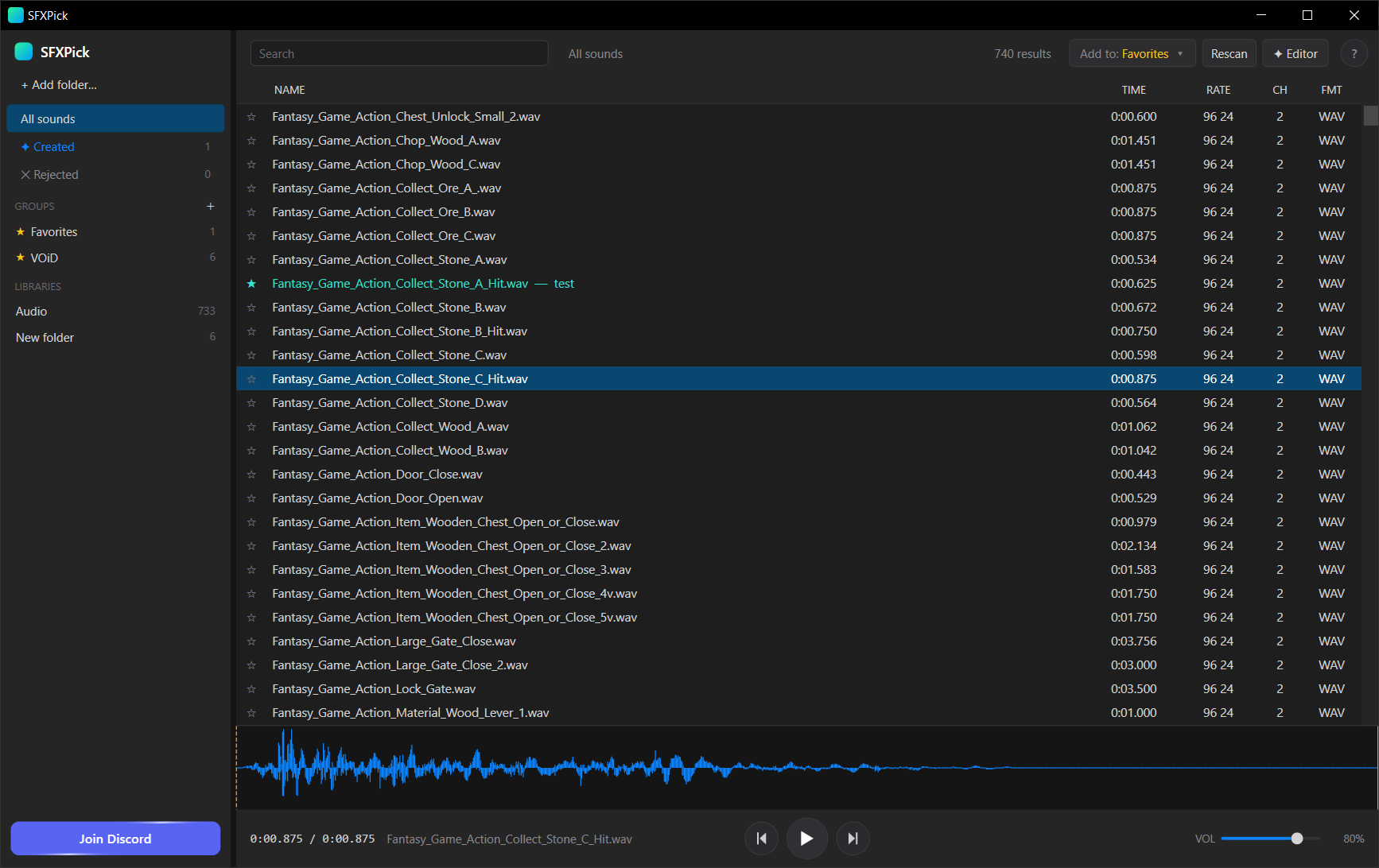 1
2
3
4
5
1
2
3
4
5
3Building your library
Add a folder
Click Add a folder in the sidebar and pick a folder of audio: a sample pack, an SFX collection, your whole sounds drive. SFXPick scans it (and every subfolder) in the background.
- Two‑phase indexing. The file list appears almost immediately; then duration, sample rate, bit depth and channels fill in as it reads each file. A progress strip shows where it's up to.
- Libraries can't overlap. A folder can't be added if it sits inside, or contains, a library you already added. Remove the other one first.
Rescan & remove
- Rescan (toolbar) picks up files you've added or deleted on disk. It works on a single library or folder, on All sounds (every library), and on the Created folder.
- Right‑click a library in the sidebar to Rescan, Remove from library or Show in Explorer. Removing only forgets it inside SFXPick; your files on disk are never deleted.
- If a file goes missing from disk, its row is dimmed red and tagged (Not Found).
SFXPick keeps the whole library in memory, so searching, filtering and the folder tree stay instant even at scale. It's been run on a real collection of ~147,000 sounds.
4The fast‑pick loop
This is the heart of SFXPick. Your hands never leave the keyboard:
- Arrow ↑ / ↓ to move through the list. Each sound auto‑plays the instant you land on it, with no clicking play.
- Space pauses and resumes. ← / → nudge the playhead 2 seconds.
- F (or Enter) favorites the sound. D favorites it with a note. X rejects it and clears it out of the way.
- Keep going. In a few minutes a pack of 200 clips becomes a shortlist of the handful worth keeping.
Every per‑sound action is also on the right‑click menu (Play, Favorite, Favorite with a note, Reject, Find similar, Open in editor, Show in library, Show in Explorer), which acts on the clicked row even if it isn't selected.
Press F1 or ? at any time, even while typing in search, to pop up the in‑app shortcuts cheat‑sheet.
5Browsing & search
Navigate
- All sounds shows your entire library. Click a library or open its folder tree to narrow to one pack or subfolder. The breadcrumb shows where you are.
- Re‑click the library name to jump back out of a subfolder to the whole library.
Search
- Press / to jump to the search box and just start typing. Results rank best‑match first and update as you type.
- Matching is fuzzy (a subsequence of the filename), and separators are ignored, so
excuse me,excuse_meandexcusemeall find a file namedexcuse_me.wav. Your notes are searched too. - The ✕ in the box clears the search; Esc leaves the box and returns you to the list.
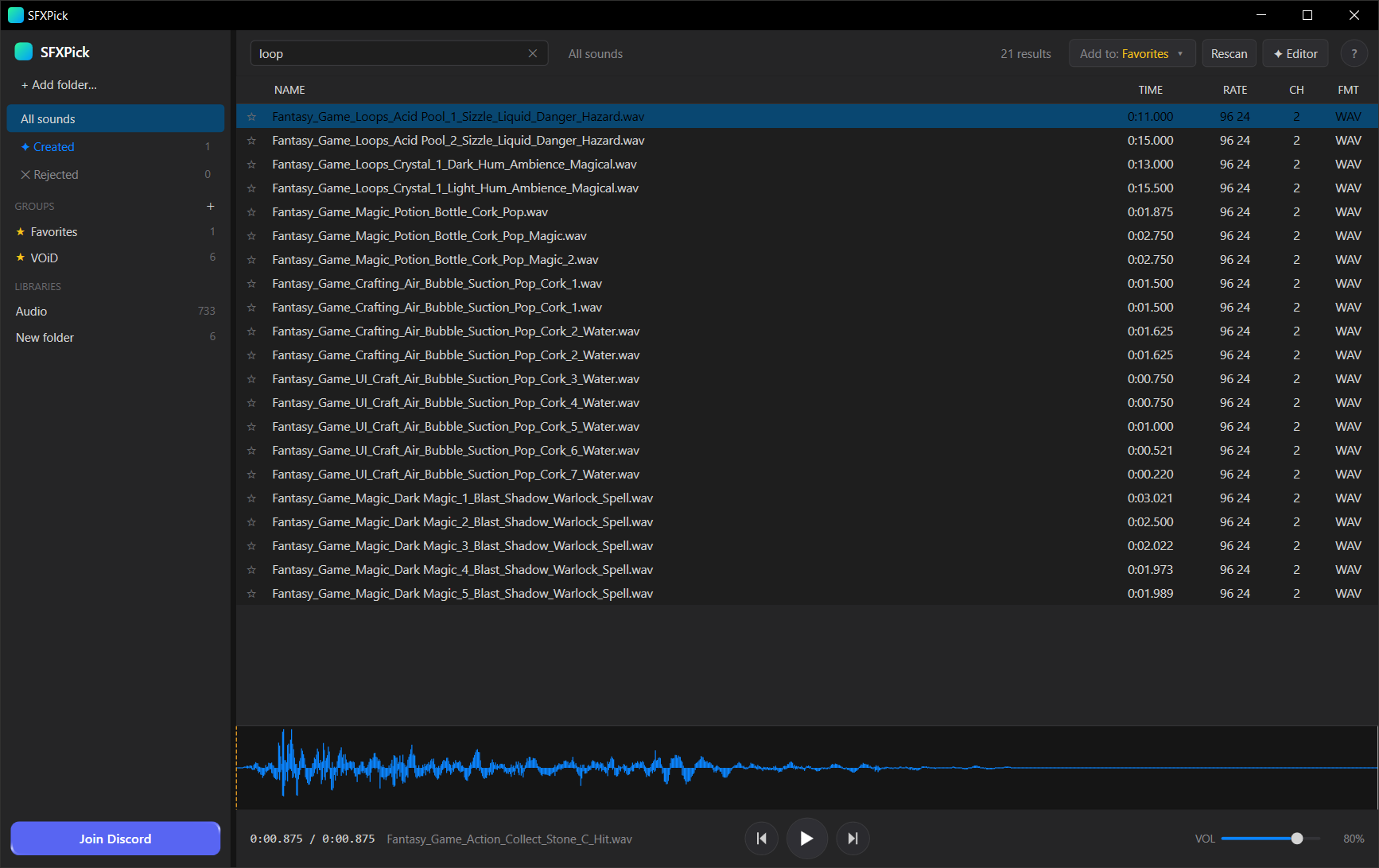
loop: a subsequence match, so it also surfaces Pop, Potion and Craft, ranked best‑first.6Favorites, notes & groups
Favorites are tags, not a single list: a sound can belong to as many groups as you like, and nothing moves on disk.
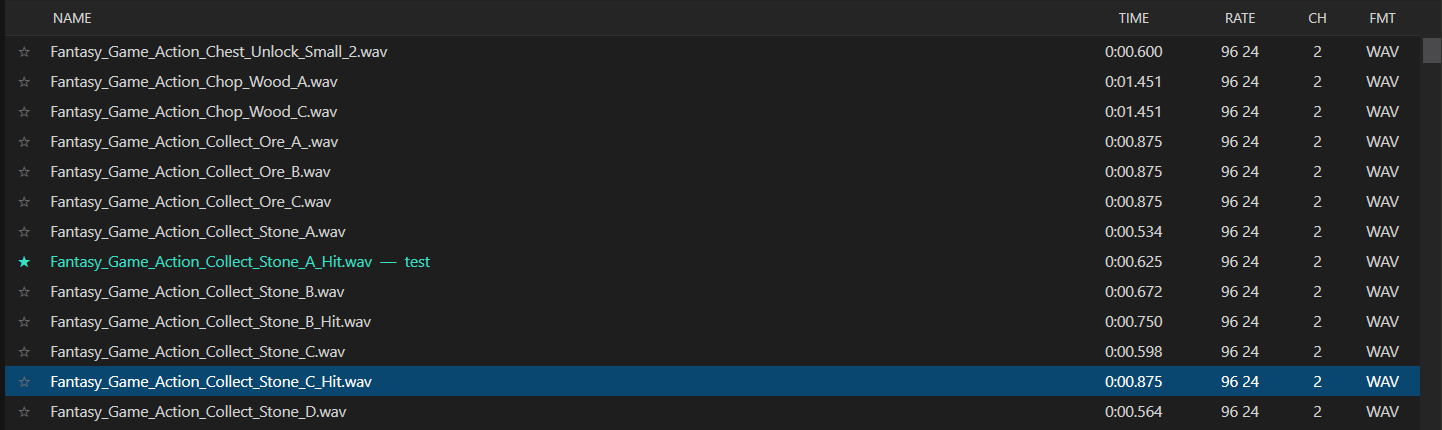
- Favorite (F). Adds (or removes) the sound from the active group. The ★ in the first column fills in.
- Favorite with a note (D). Opens a small dialog; the note rides along next to the filename and exports with the file. Notes are per‑group.
- Groups. Click the group button to switch the active “Add to” group or make a New group…. There's always a built‑in Favorites group (it can't be deleted). Right‑click a group to set it active, rename, delete or export it.
7Rejecting & the Rejected folder
- Press X (or Del) to reject a dud. It vanishes from the list and is excluded from group counts, but nothing is deleted. Rejected sounds collect in the virtual ✕ Rejected folder under All sounds.
- Open Rejected to review them; press X there to restore a sound back into the library.
Think of it as a recycle bin inside the app: a way to clear duds out of sight while you hunt, with nothing lost.
8The player & waveform
The bottom bar plays whatever's selected. The waveform shows the real shape of the clip.

- Click or drag the waveform to scrub to any point. A click also drops a mark (orange dashed line); when the clip plays to the end, Space resumes from that mark, handy for auditioning one phrase on repeat.
- The volume slider shows a live percentage. Click anywhere on its track to jump there.
9Find Similar
Heard one that's close but not quite right? Right‑click → Find similar sounds. SFXPick ranks your whole library by how much each file sounds like the one you picked, using an acoustic fingerprint of every clip.
- The breadcrumb shows “Similar to: <file>” and a Show top N slider appears in the toolbar; slide it to widen or tighten how many of the closest matches you see.
- Press Esc (or the ✕ by the slider, or any sidebar item) to leave the similar view.
- The first time, SFXPick analyzes files in the background (a one‑time, cached pass shown in the progress strip). Find Similar works on whatever's been analyzed so far.
10The Loop / Clip / Cut editor
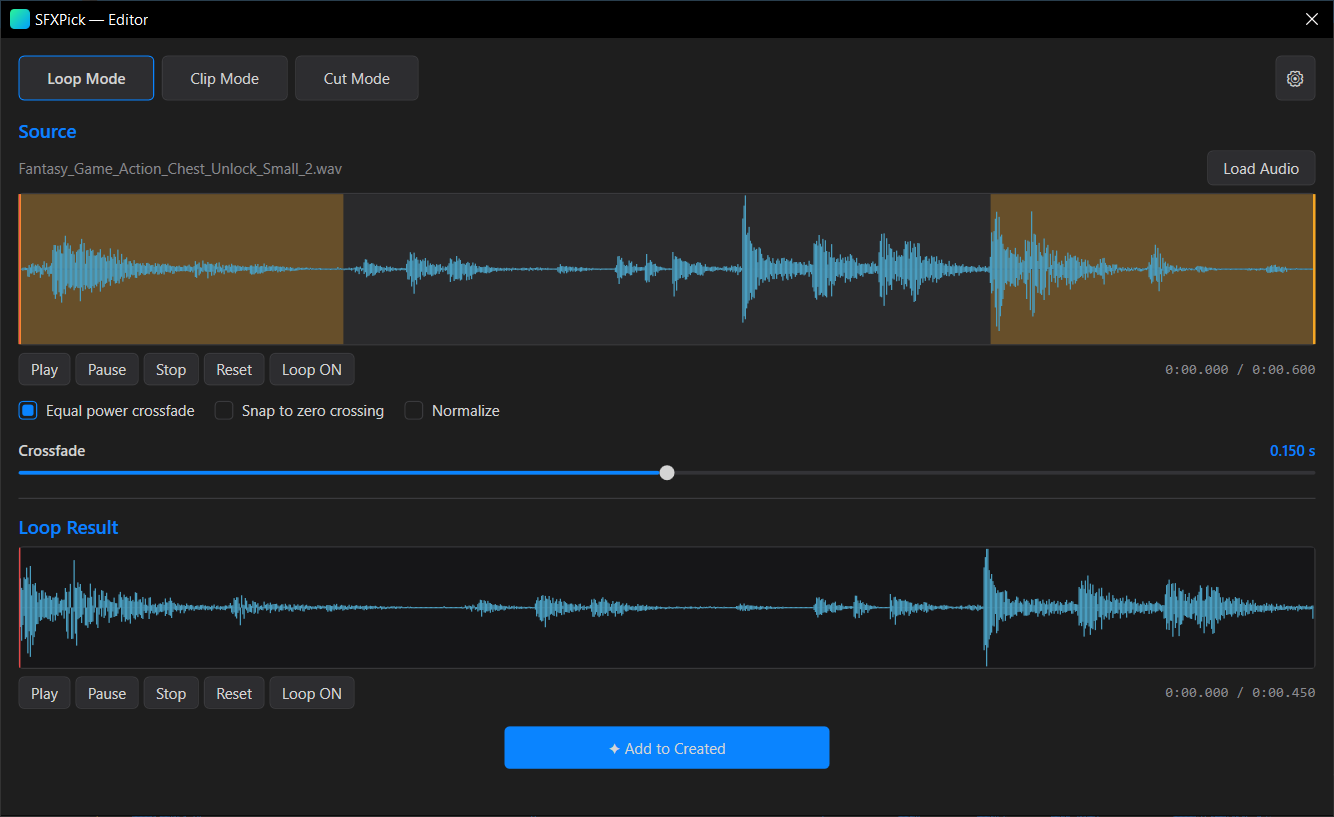
Press C (or the ✦ Editor button, or right‑click → Open in editor…) to open the built‑in editor on the selected sound. It opens in its own window and pauses the main player. Everything you make lands in the ✦ Created folder, ready to play, favorite or export like any other sound. Your source file is never modified.
The three modes
- Loop: drag a region and SFXPick crossfades its tail back over its head into a seamless, click‑free loop. Choose equal‑power or smoothstep, snap edges to zero‑crossings, normalize, and set the crossfade length (capped at half the region). Loop points are embedded as a
smplchunk so DAWs see the loop. - Clip: extract a region as a clean clip with fade in / fade out sliders.
- Cut: select regions and remove them, with a crossfade baked at each seam. Undo / Redo step through your cuts; already‑cut spans shade red on the source and green markers show each seam on the preview.
Each mode has its own region and its own looping preview, so switching tabs never disturbs the others. Set where files are saved with the ⚙ settings menu (top‑right → Change output folder…); the default is Documents\SFXPick\Created.
11Exporting your picks
When you're viewing a group, two export buttons appear in the toolbar (also on the group's right‑click menu). Your originals are never touched; export only ever copies.
- Export to folder: copies every favorite into a folder you choose, in its original format, with a
_notes.txtalongside for any notes. Name collisions are handled automatically. - ⚖ Export · even loudness: the same copy, but loudness‑matched (EBU R128 / LUFS) so every sound plays at the same volume, with no more riding the fader between clips. Files come out as WAV, lifted as loud as possible without clipping. Picks the quietest file as the target automatically; no settings to fuss with.
12Keyboard reference
The whole workflow, on the keys. Single‑letter shortcuts work whenever you're not typing in the search box.
13Tips & troubleshooting
Supported formats
SFXPick plays the pro formats browser‑based tools choke on, including 24‑bit, 32‑bit and float WAV:
Common questions
- A row says “(Not Found)”. The file was moved or deleted on disk. Rescan the library to clean up, or put the file back.
- Closing the app. Close it normally with the window's ✕. Avoid force‑killing it from Task Manager while it's busy indexing; that protects the local database.
- Where are my favorites stored? In a small local database at
%APPDATA%\soundpick\soundpick.db. It stays put between updates, so your library and picks carry over. - Nothing plays. Check the volume slider isn't at 0%, and that the selected row isn't marked “(Not Found)”.
Stuck or have an idea? Join the Discord and we're happy to help.